
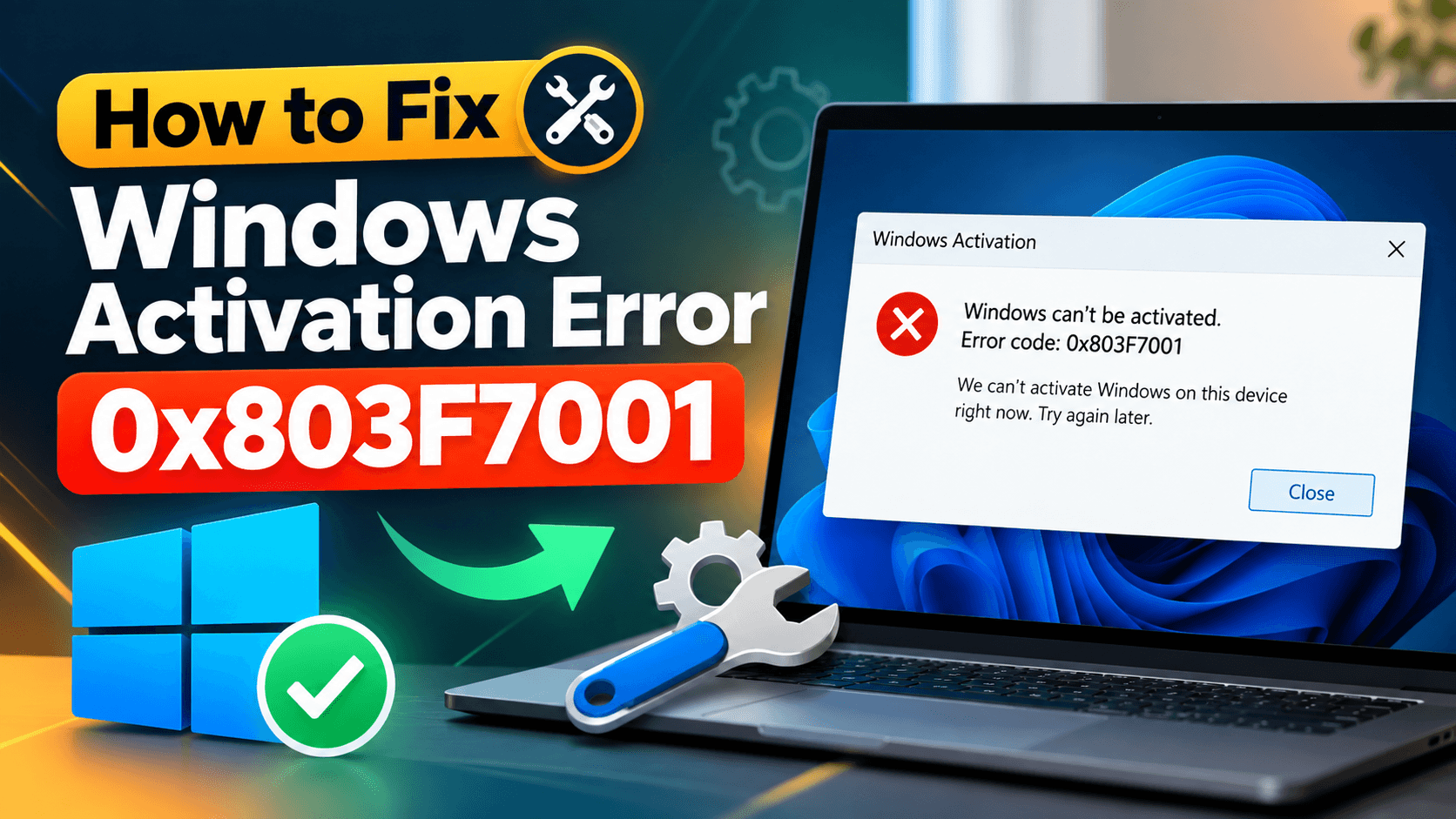
Seeing error 0x803F7001 on the Activation page? It means Windows could not find a valid license for your PC. The error shows up on both Windows 11 and Windows 10, usually after a clean install, a motherboard swap, or picking the wrong edition during setup.
Quick fix: go to Settings > System > Activation (Windows 11) or Settings > Update & Security > Activation (Windows 10) and select Troubleshoot. If that does not work, this guide covers every way to fix error 0x803F7001, from re-entering your product key to reactivating after a hardware change. In most cases you will not need to buy a new license.
What Does Error 0x803F7001 Mean?
When Windows starts, it checks your hardware ID and any stored product key against Microsoft’s activation servers. If nothing matches, Windows stays unactivated and shows:
“We can’t activate Windows on this device as we can’t connect to your organization’s activation server / a valid license couldn’t be found. Error code: 0x803F7001.”
Windows still works, but you get an “Activate Windows” watermark, limited personalization settings, and no access to some features until error 0x803F7001 is fixed.
What Causes Windows Activation Error 0x803F7001?
Microsoft lists four common triggers for this error. Find yours in the table, then jump to the matching fix below.
| Cause | What happened | Best fix |
|---|---|---|
| First-time install | Windows was never activated on this PC and no key was entered | Enter a product key or buy a digital license (Fix 2 or Fix 5) |
| Hardware change | You replaced the motherboard or other major components, so the hardware ID no longer matches the license | Reactivate via your Microsoft account (Fix 3) |
| Wrong edition installed | You reinstalled Windows Pro but your digital license is for Home (or the reverse) | Run the troubleshooter and switch edition (Fix 4) |
| New PC with a factory fault | The manufacturer’s embedded key is missing or corrupt on first boot | Troubleshooter, then contact the manufacturer (Fix 1) |
Less common causes include a PC repaired at a third-party shop that installed a new image, a volume-license (KMS) key on a home PC, or a key that was already used on too many devices. If your key is valid but for a different edition, you may see error 0xC004F212 instead.
How to Fix Windows Activation Error 0x803F7001
Work through these fixes in order. Most people are done after Fix 1 or Fix 2.
The Activation page is in a slightly different spot on each version:
- Windows 11: Start > Settings > System > Activation
- Windows 10: Start > Settings > Update & Security > Activation
Fix 1: Run the Activation Troubleshooter
The troubleshooter checks Microsoft’s servers for a digital license linked to your hardware or account and applies it automatically.
- Open the Activation page (paths above).
- Click Troubleshoot. If you do not see the button, sign in with an administrator account.
- Wait for the scan to finish and follow any prompts.
- Restart your PC and check the Activation page again.
If it reports “Windows is activated with a digital license”, you are done.
Fix 2: Enter Your 25-Character Product Key
If you bought Windows as a retail or OEM key, this is the fastest fix for error 0x803F7001.
- Open the Activation page.
- Click Change product key.
- Type the 25-character key (format: XXXXX-XXXXX-XXXXX-XXXXX-XXXXX) and click Next.
- Click Activate.
Where to find your key:
- The confirmation email from where you bought Windows
- The Certificate of Authenticity (COA) sticker on your PC or laptop
- The retail box or product card
- On a preinstalled PC, run
wmic path softwarelicensingservice get OA3xOriginalProductKeyin Command Prompt to read the key stored in the BIOS
Make sure the key matches the edition you installed. A Windows 10 Home key will not activate Windows 11 Pro; you will get error 0xC004F213 or a similar mismatch code instead.
Fix 3: Reactivate After a Hardware Change
A digital license is tied to your motherboard. Change it and Windows sees a brand-new PC. Microsoft provides an exception path, but only if you linked the license to your Microsoft account before the change.
- Sign in to Windows with the same Microsoft account you used before the upgrade.
- Open the Activation page and click Troubleshoot.
- Select I changed hardware on this device recently.
- Sign in again if prompted, then pick your PC from the device list.
- Tick This is the device I’m using right now and click Activate.
If your PC is not in the list, the license was not linked to the account. In that case, use Fix 2 with your original key, or buy a new license (Fix 5).
Tip: Before any future hardware upgrade, go to Settings > Accounts and sign in with a Microsoft account. The Activation page should then read “Windows is activated with a digital license linked to your Microsoft account.”
Fix 4: Switch to the Correct Windows Edition
During a reinstall, choosing Pro when your license is for Home (or vice versa) triggers 0x803F7001 every time.
- Open the Activation page and click Troubleshoot.
- If the tool finds a digital license for a different edition, it will say so and offer to install the correct one.
- Follow the prompts. Windows switches edition without a full reinstall.
You can also check which edition you are running by pressing Win + R, typing winver, and pressing Enter.
Fix 5: Buy a Genuine Windows License
If Windows was never activated on this PC and you have no key, you need a license.
- Open the Activation page.
- Click Go to Microsoft Store (or Open Store).
- Buy the Windows Home or Pro digital license and follow the prompts. It activates automatically.
You can also buy a retail product key from an authorised reseller and enter it with Fix 2. Avoid suspiciously cheap keys marked as “volume” or “MAK”; these are often revoked and will bring the error back.
Fix 6: Force Activation From Command Prompt
If the Settings app is stuck or the troubleshooter keeps failing, use the Software Licensing Manager (slmgr).
- Right-click Start and choose Terminal (Admin) or Command Prompt (Admin).
- Install your key:
slmgr /ipk XXXXX-XXXXX-XXXXX-XXXXX-XXXXX - Activate online:
slmgr /ato - Check the result:
slmgr /xpr
If /ato returns an error, note the new code; it usually points to a different problem than 0x803F7001 (for example a blocked key or no internet connection).
Still Seeing Error 0x803F7001? Try These
- Check your internet connection. Activation needs to reach Microsoft’s servers. Disable VPNs and proxies, then retry.
- Check the date and time. A wrong system clock can break the secure connection to the activation server. Turn on Set time automatically in Settings > Time & language.
- Repaired PC? If a repair shop reinstalled Windows, ask whether the image they used needs its own license.
- Brand-new PC? If it was never activated and the troubleshooter fails, the OEM key may be missing from the firmware. Contact the manufacturer; this is covered under warranty.
- Contact Microsoft Support. If you own a genuine key and nothing works, Microsoft’s activation support can activate manually over chat or phone.
Once Windows is activated, you may also want to speed up Windows 11 with a few quick settings changes.
Frequently Asked Questions
Is error 0x803F7001 the same on Windows 10 and Windows 11?
Yes. The cause and the fixes are identical; only the path to the Activation page differs.
Can I use my old Windows 10 key to fix 0x803F7001 on Windows 11?
Yes, as long as the edition matches (Home to Home, Pro to Pro). Windows 11 accepts Windows 10, 8.1, and 7 retail keys.
Will I lose my files fixing this error?
No. None of the fixes above reinstall Windows or touch your data.
Does a new motherboard always need a new license?
Not if the license was a retail key or a digital license linked to your Microsoft account. OEM licenses that came preinstalled on the PC are tied to that motherboard, so a replacement usually requires a new license.
Can I keep using Windows without activating?
Yes, but with a permanent watermark, no personalization options, and no guarantee of future feature updates. Activation is required for a fully supported system.
Conclusion
Windows activation error 0x803F7001 almost always comes down to one of four things: no key, a hardware change, the wrong edition, or a factory fault. Start with the Activation Troubleshooter, enter your product key if you have one, and use the hardware-change path if you recently upgraded your PC. Only buy a new license once those have failed.
If this guide fixed your error, or you hit a different code along the way, let us know in the comments.