
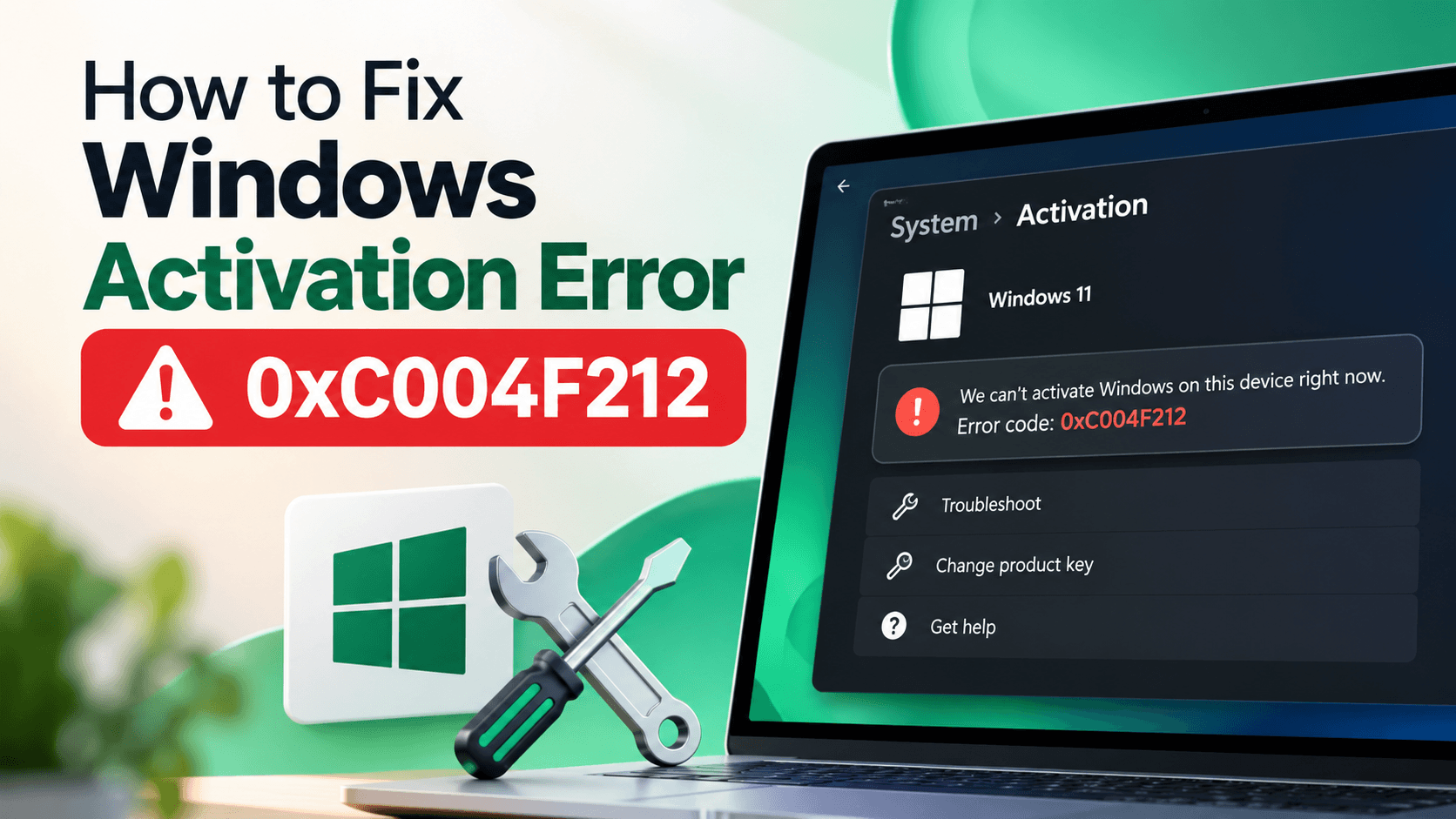
Seeing error 0xC004F212 with the message “The product key used on this device isn’t compatible with this edition of Windows”? It means your product key or digital license is for a different edition of Windows than the one installed, for example a Pro license on a PC running Windows Home.
Quick fix: go to Settings > System > Activation and select Troubleshoot. If Windows finds a digital license for a different edition, it will offer to install the correct one. This guide covers every way to fix error 0xC004F212 on Windows 11 and Windows 10, from a two-minute edition switch to a clean reinstall.
What Does Error 0xC004F212 Mean?
Every Windows product key is tied to one specific edition, such as Home, Pro or Education. Error 0xC004F212 appears when the key or digital license Windows finds does not match the edition running on your PC, so activation is refused.
The full message usually reads: “The product key used on this device isn’t compatible with this edition of Windows. You may need to contact the store or company where you purchased Windows, enter a different product key, or visit the Microsoft Store to buy a genuine copy of Windows.”
Your key is often perfectly valid. It is simply being used on the wrong edition, which is why error 0xC004F212 is usually easy to fix once you know which edition you actually own.
What Causes Error 0xC004F212?
- Choosing the wrong edition during a reinstall. When you reinstall Windows with a digital license, setup asks which edition to install. Picking Home when you are licensed for Pro (or the other way round) triggers error 0xC004F212.
- A laptop with a built-in Home key. Many PCs store a Windows Home key in the firmware. Setup detects it and installs Home automatically, even if you bought a Pro key.
- Buying a key for a different edition. For example, a Pro key entered on Windows Home, or an Education key on Pro.
- Special editions that don’t mix. Keys for Home N, Pro N or Home Single Language only work with those exact editions.
- Hardware or motherboard changes that leave Windows reading a different embedded key than before.
Step 1: Check Which Edition You Have and Which You Own
Before fixing error 0xC004F212, confirm the mismatch:
- Press Windows + R, type
winverand press Enter to see your installed edition. You can also check Settings > System > About under Windows specifications. - Open Settings > System > Activation to see the activation status and any edition details.
- Check your purchase email, product key card or receipt to see which edition your key is for.
This table shows which combinations cause error 0xC004F212:
| Installed edition | Your key or license | Result |
|---|---|---|
| Home | Home | Activates normally |
| Home | Pro | Error 0xC004F212, but you can upgrade to Pro (Fix 2) |
| Pro | Home | Error 0xC004F212, reinstall Home or buy a Pro license |
| Home | Home N or Single Language | Error 0xC004F212, install the matching special edition |
| Home or Pro | Education or Enterprise | Error 0xC004F212, these editions use organization licensing |
Fix 1: Run the Activation Troubleshooter
The troubleshooter is the easiest way to fix error 0xC004F212, especially after a reinstall.
- On Windows 11, open Start > Settings > System > Activation. On Windows 10, open Start > Settings > Update & Security > Activation.
- Select Troubleshoot. You need to be signed in as an administrator.
- If the troubleshooter finds a valid digital license for a different edition, it will tell you and show how to install the correct edition.
Tip: sign in with the Microsoft account linked to your license before running the troubleshooter, so it can find your digital license.
Fix 2: Upgrade Windows Home to Pro to Fix Error 0xC004F212
If you have Windows Home installed but own a Pro key or license, you don’t need to reinstall. Entering the Pro key switches the edition in place and keeps your files and apps.
- Go to Settings > System > Activation.
- Select Change product key (on Windows 10: Change product key under Activation).
- Enter your 25-character Pro product key and select Next.
- Follow the prompts. Windows upgrades to Pro, restarts, and activates.
If your Pro license is a digital license (for example, a Pro upgrade bought from the Microsoft Store) and you have no key to type, you can switch to Pro with Microsoft’s generic Pro installation key, then let Windows activate with your digital license:
VK7JG-NPHTM-C97JM-9MPGT-3V66TNote: this generic key only changes the edition to Pro. It does not activate Windows on its own. You still need a valid Pro license or digital license, otherwise Windows will stay unactivated.
Fix 3: Enter a Product Key That Matches Your Edition
If you have a key for the edition you are already running, install it from Command Prompt to clear error 0xC004F212:
- Search for cmd, right-click Command Prompt and choose Run as administrator.
- Install the matching key (replace the Xs with your key):
slmgr /ipk XXXXX-XXXXX-XXXXX-XXXXX-XXXXX - Activate Windows:
slmgr /ato
To check which key is embedded in your PC’s firmware (common on laptops that shipped with Windows), run this in PowerShell as administrator:
(Get-CimInstance -ClassName SoftwareLicensingService).OA3xOriginalProductKeyIf you are not sure where your key is, Microsoft explains how to find your Windows product key.
Fix 4: Reinstall the Edition You Are Licensed For
You need a reinstall when you want to go down an edition, for example from Pro to Home, or to a special edition such as Home N or Single Language. Windows cannot downgrade in place.
- Back up your files to an external drive or cloud storage.
- Download Microsoft’s Windows installation media and create a bootable USB drive.
- Boot from the USB and start setup.
- When asked for a product key, enter your key, or choose I don’t have a product key if you have a digital license.
- When asked to choose an edition, select the exact edition you are licensed for.
Warning: a clean install erases everything on the drive you install to. Back up first and make sure you choose the correct edition, or error 0xC004F212 will come straight back.
Fix 5: Contact the Seller or Buy the Correct License
If your key was sold as the wrong edition, contact the store or company you bought it from and ask for a key that matches your installed edition. If you want to keep your current edition and have no matching license, you can buy one from Settings > System > Activation > Go to Microsoft Store or an authorized reseller.
How to Avoid Error 0xC004F212 in the Future
- Write down your edition before reinstalling Windows, and choose the same one during setup.
- Link your license to a Microsoft account so the Activation troubleshooter can find it later. Protect that account with two-factor authentication.
- Check the edition before buying a key. Make sure it matches your installed edition, including N and Single Language versions.
- Keep your purchase email with the product key and edition name.
If you are also seeing activation problems after replacing hardware, read our guide to fix error 0xC004F213 and 0xC004F211. Once Windows is activated, our 12 free ways to speed up Windows 11 are a good next step, and you can find more help in our Windows guides.
Frequently Asked Questions
What does error 0xC004F212 mean?
Error 0xC004F212 means the product key or digital license on your device is for a different edition of Windows than the one installed. For example, a Pro key on Windows Home.
Can I fix error 0xC004F212 without reinstalling Windows?
Often, yes. If you have Windows Home and a Pro license, enter the Pro key under Change product key to upgrade in place. A reinstall is only needed when you must move down an edition, such as Pro to Home.
Will I lose my files when fixing error 0xC004F212?
Upgrading from Home to Pro keeps your files and apps. A clean reinstall to a different edition erases the drive, so back up your files first.
Why did Windows install Home when I have a Pro key?
Many PCs have a Home key built into the firmware, and Windows setup uses it automatically. After installation, enter your Pro key under Change product key to upgrade.
Can a Windows 10 key fix error 0xC004F212 on Windows 11?
A valid Windows 10 key can activate Windows 11 of the same edition. A Windows 10 Home key activates Windows 11 Home, and a Windows 10 Pro key activates Windows 11 Pro, but not the other way round.
What if the error code changes while troubleshooting?
Look up the new code in Microsoft’s list of Windows activation errors, because each code has a different fix. For general activation help, see Microsoft’s guide to activate Windows.
Conclusion
Error 0xC004F212 is an edition mismatch, not a sign that your key is fake or broken. Check which edition you have and which you own, then run the Activation troubleshooter. If you have Home and a Pro license, upgrade in place with Change product key. If you need a lower or special edition, reinstall the exact edition you are licensed for. Match the key to the edition and error 0xC004F212 disappears.