
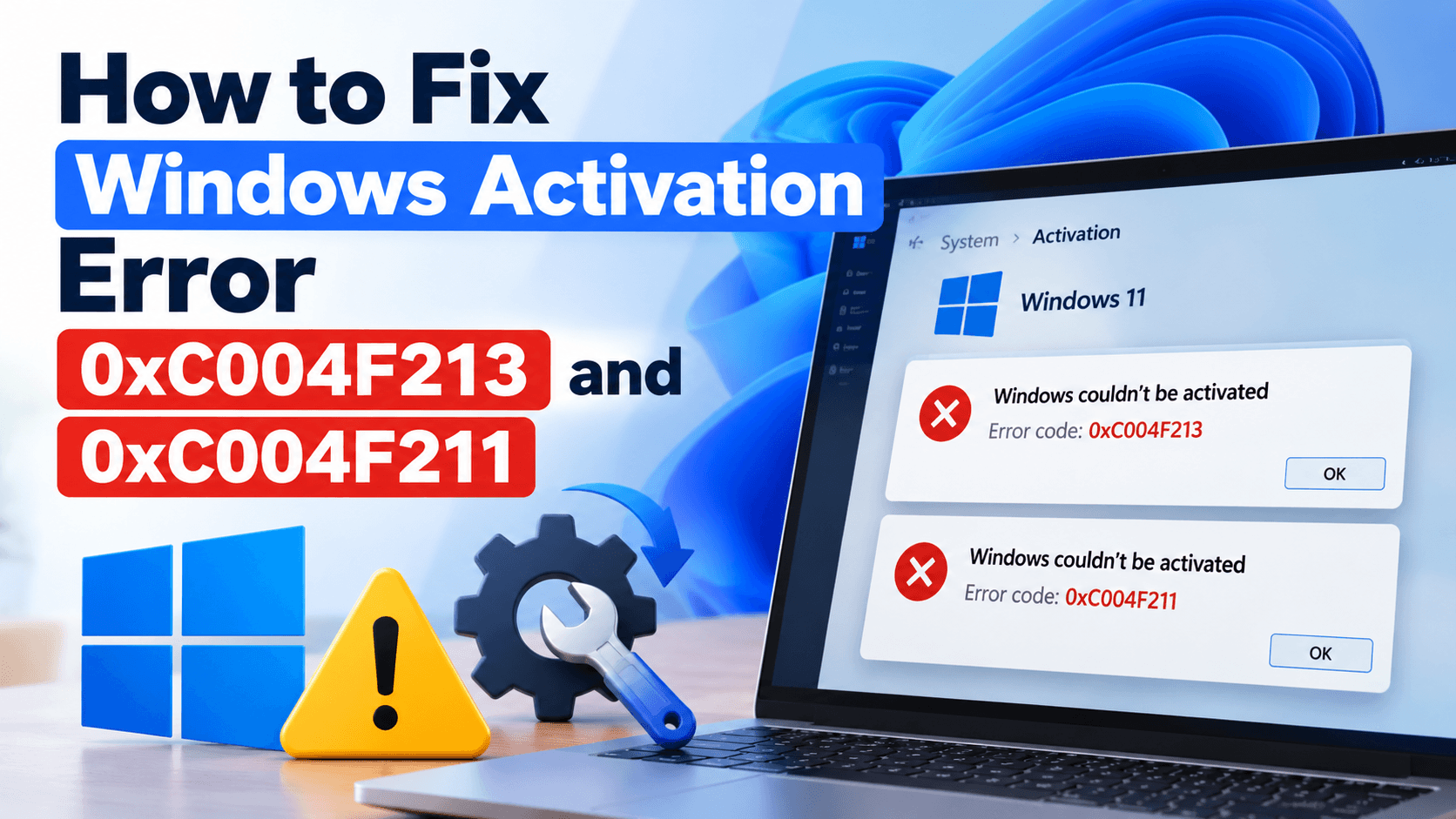
If Windows suddenly shows “Windows is not activated” with error 0xC004F213 (no product key was found on your device) or 0xC004F211 (the hardware of your device has changed), the cause is almost always a hardware change, usually a new motherboard, a BIOS reset or a major repair.
Quick fix: open Settings > System > Activation > Troubleshoot and choose “I changed hardware on this device recently.” If your license was linked to your Microsoft account, Windows usually reactivates in a couple of minutes. This guide explains how to fix error 0xC004F213 and 0xC004F211 step by step, and what to do if the troubleshooter does not work.
What Do Errors 0xC004F213 and 0xC004F211 Mean?
Windows ties its license to your device’s hardware, mainly the motherboard. When you restart after a big hardware change, Windows looks for a license that matches the “new” device. If it cannot find one, activation fails and you see error 0xC004F213, 0xC004F211 or both.
| Error code | What Windows is telling you |
|---|---|
| 0xC004F211 | Your device’s hardware has changed since Windows was activated |
| 0xC004F213 | No product key was found on your device |
The two errors usually appear together: the hardware changed, the stored license no longer matches, so Windows reports that no product key was found.
What Causes Error 0xC004F213?
- Replacing the motherboard (the most common cause)
- A repair shop swapping the motherboard or other major components
- A BIOS/UEFI update or reset that changes hardware identifiers
- Moving a Windows installation to a different PC
- Reinstalling Windows when the license was never linked to a Microsoft account
Smaller upgrades such as RAM, an SSD or a graphics card usually do not trigger error 0xC004F213 on their own.
Fix 1: Run the Activation Troubleshooter (Hardware Change Option)
This is Microsoft’s official way to move a license after a hardware change. It works only if you were signed in with your Microsoft account before the hardware change, so your digital license was linked to that account.
On Windows 11
- Open Start > Settings > System > Activation.
- Select Troubleshoot (you must be signed in as an administrator).
- If the troubleshooter cannot fix it, select “I changed hardware on this device recently.”
- Sign in with the Microsoft account linked to your license.
- Choose your device from the list, tick “This is the device I’m using right now” and select Activate.
On Windows 10
The steps are the same, but the path is Start > Settings > Update & Security > Activation > Troubleshoot.
If your device does not appear in the list, the license probably was not linked to your account before the change. Microsoft explains the full process in its guide to reactivating Windows after a hardware change. Otherwise, move on to Fix 2.
Fix 2: Re-enter Your Original Product Key
If you have the product key you used before the hardware change, enter it again:
- Go to Settings > System > Activation (Windows 10: Update & Security > Activation).
- Select Change product key.
- Enter the 25-character key and select Next.
You can usually find your key in the confirmation email from the seller, on the card or box of a retail copy, or on the Certificate of Authenticity (COA) sticker on older PCs.
Tip: if Windows came preinstalled with a key stored in the firmware, you can read it by running PowerShell as administrator:
(Get-CimInstance -ClassName SoftwareLicensingService).OA3xOriginalProductKeyIf this returns nothing, no key is embedded in your current motherboard. That is expected after a motherboard replacement and is exactly why error 0xC004F213 appears.
Fix 3: Activate Windows Using Command Prompt
If entering the key in Settings fails, try the command line:
- Search for cmd, right-click Command Prompt and choose Run as administrator.
- Install your key (replace the Xs with your 25-character product key):
slmgr /ipk XXXXX-XXXXX-XXXXX-XXXXX-XXXXX - Activate Windows:
slmgr /ato
A pop-up confirms whether activation succeeded.
Fix 4: Activate by Phone
If online activation keeps failing with a valid key, phone activation can help:
- Press Windows + R, type
slui 4and press Enter. - Choose your country or region.
- Call the number shown and follow the automated prompts to get a confirmation ID.
Note: phone activation is not available for Windows Pro for Workstations or Pro Education. Those editions must activate online.
Fix 5: Buy a New License When Yours Cannot Transfer
Not every license can move to new hardware, so the right fix for error 0xC004F213 depends on the type of license you own:
| License type | Transfers after a motherboard change? |
|---|---|
| Retail (bought separately) | Usually yes, once it is no longer used on the old device |
| OEM (preinstalled on a PC) | Generally no, it is tied to the original motherboard |
| Digital license linked to a Microsoft account | Often yes, through the Activation troubleshooter |
| Volume or work license | Managed by your organization |
If Windows came preinstalled and you replaced the motherboard yourself, Microsoft notes that you may need a new license. You can buy one from Settings > System > Activation > Go to Microsoft Store or from an authorized reseller.
Exception: if the manufacturer replaced the motherboard under warranty, contact them first. They can often restore activation at no cost.
How to Prevent Error 0xC004F213 Next Time
- Link your license to a Microsoft account before any hardware upgrade. In Settings > System > Activation it should say that Windows is activated with a digital license linked to your Microsoft account. Protect that account with two-factor authentication, since it now holds your license.
- Keep your product key email or card somewhere safe.
- If a repair shop replaces your motherboard, ask whether the repair includes Windows reactivation.
Once Windows is activated again, it is a good moment to tune performance too. Our guide on how to speed up Windows 11 covers 12 free fixes, and you can find more help in our Windows guides.
Frequently Asked Questions
Why does Windows say no product key was found after I replaced my motherboard?
Your license was tied to the old motherboard. Windows sees the new board as a different device, so it cannot find a matching license and shows error 0xC004F213 until you reactivate.
Can I fix error 0xC004F213 without a product key?
Yes, if your digital license was linked to your Microsoft account before the hardware change. Run the Activation troubleshooter and choose “I changed hardware on this device recently.”
Does changing my SSD or RAM cause error 0xC004F211?
Usually not. Minor upgrades rarely affect activation. The motherboard is the main component Windows uses to identify your device.
Can I use my old OEM key on a new motherboard?
Generally no. OEM licenses are tied to the device they shipped with, while retail licenses can be moved to new hardware.
What if none of these fixes work?
Contact Microsoft Support with your error code and proof of purchase. If the error code changes while you troubleshoot, look it up in Microsoft’s list of Windows activation errors, because the fix may be different.
Conclusion
Errors 0xC004F213 and 0xC004F211 almost always mean Windows no longer recognizes your hardware. Start with the Activation troubleshooter’s hardware change option, then try re-entering your original key or activating from Command Prompt or by phone. If your license is OEM and cannot transfer, buying a new license is the only route. Before your next upgrade, link your license to a Microsoft account so you never have to fix error 0xC004F213 the hard way again.